Photography workflow – Back-up plans for the main computer
The photograph above was shot with my iPhone while I was waiting for a corporate photo shoot to commence. The sky over lower Manhattan was grim and rainy. You can see the reflection of the fluorescent lights inside the room. This gave the city scene a Blade-Runner-esque feel. And with that, this image is perhaps suitably Apocalyptic for this topic – what are your plans for catastrophic failure of your main computer?
The idea for this article comes from a discussion with another photographer – she cringed every time I mentioned, “so what happens to your business if your house burns down and your computer is gone?” My other remark that her computer’s hard drive most likely will fail at some point, didn’t seem to lift her spirits either.
So with that, let’s look at those two points:
1. Safe-guarding yourself against catastrophic loss of your computer.
2. Preparing yourself for when your hard drive crashes.
The solutions are fortunately quite simple and elegant …
Disclaimer
– I can find my way around a computer to do my work as a photographer in the digital age. However, I’m not very computer savvy, and I’m not a computer geek with incredible detailed knowledge about the latest in computer hardware and software. So there might well be more sophisticated ways of doing what I’m doing. And there definitely are other ways of doing what I am doing. But I also feel that any digital photographer that strays from these basic ideas, will inevitably face very costly, if not insurmountable problems.
– We’re just going to discuss your actual main computer – not your external hard drives or RAID arrays that hold your photographs. That’s another discussion.
My workflow and setup
I distinguish between two parts of my workflow:
- My computer (an iMac), on which I have my work files and documents such as Excel spreadsheets, and contracts, etc. My emails and Calendar is also on there.
- My photographs, which I keep on external drives – two Drobos
With that, I do slightly different things to each of those parts, to protect myself against catastrophic failure.
Safe-guarding yourself against catastrophic loss of your computer
This year we saw the unbelievable way that Japan was hit with earthquakes and tsunamis. Devastating! And across the world, the global climate changes seem to affect the frequency and severity of the weather, such as tornados. The Mid-West of the USA saw tornado after tornado this year. And with no warning houses are shredded. Therefore it isn’t just scare-mongering to consider the likelihood of your computer being completely destroyed. Then there is always the lurking problem of theft of your computer.
Solution: create an on-line / off-site version of your computer files.
The idea here is that your computer files – your Word documents, spreadsheets, PDFs .. everything .. is stored as an immediate copy on a website. This is done automatically. You don’t have to think about it. Just pay your monthly or annual fee. Simple as that.
• Backblaze
For online / cloud back-up there are a number of services. I had a look at Backblaze after reading some glowing recommendations
Backblaze has three immediate advantages for me:
– it’s very affordable. Surprisingly affordable.
– unlimited capacity.
– should you need your data, they can send it to you on a hard drive for a fee.
It takes quite a while for the initial back-up to Backblaze if you are dealing with huge volumes of data – multiple Terrabytes – but once the initial back-up is done, the incremental backups are quite fast. And then you’re all set.
• Time Machine
Because it just makes good sense, and because it runs quietly in the background. I have Time Machine on my two main Mac computers, to keep copies of all my files on a separate hard drive. Redundancy is a good thing!
• Dropbox.
I rely heavily on Dropbox to sync files between all my devices. I have four computers, spread between the studio and home, and one that I use just for travel. There is also my iPhone (which I regard as my office in my hand), and my iPad. With Dropbox I always have the current version of any document, accessible from any device.
There are other options out there as well on the internet. Lots of them.
Here is what I like about Dropbox, explained in how I use Dropbox.
I keep everything of importance that resides on my main hard-drive, in the dropbox folder – contracts, receipts, reference files, presets .. everything. Not the images from weddings and photo sessions. That would take up too much space. But I keepall my work files and documents. Instead of using the Dropbox folder on my computer as a single folder to stuff a bunch of documents in, I created a sensible folder structure within the Dropbox. Here is a screen-grab of part of it to give you an idea. Folders within folders.
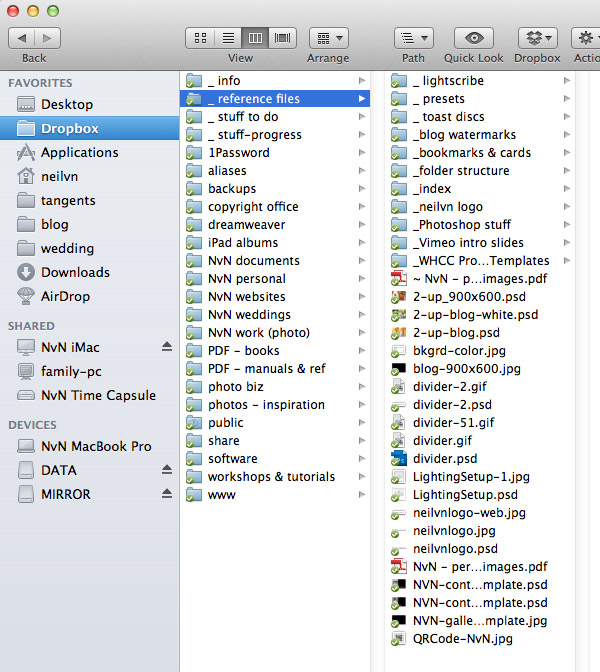
Now, should my house burn down and I lose my computer and data … I can go to the Apple Store and buy a new MacBook Pro again. After setting it up, I would sign into my Dropbox account, and let the on-line version of my computer files sync to my new computer. Barely a day’s hiccup compared to what would’ve been a catastrophe if I had lost all my documents and files.
I should also mention that any back-ups of my programs, such as Mac Mail, Calendar, Contacts, I save in a Dropbox folder. So I can always resuscitate my essential stuff from Dropbox should I lose my main computer. Of course, my Calendar and Contacts are also backed up on iCloud.
Another example of the beauty of using a solution like DropBox:
I might be in London on a trip, and a client emails me and needs a file. I can email or text my assistant at the office to place the file in a Dropbox folder for me on the main computer in the office. A minute later (or less) it is synced on my laptop in my hotel room in London. I can then retouch the photo / make changes to a document / whatever it is that needs to be done. Once I am done and have saved the file, it will automatically sync that file with the same file on my main office computer’s dropbox folder. (Same folder structure!) And then my assistant can print it and mail it or take care of it. Elegant!
With Dropbox’s “Packrat” feature, they now keep an unlimited number of any files that I may delete or change. Wonderful peace of mind.
While I am recommending must-do stuff, here are two programs that I’d highly recommend – 1Password and Evernote. They will make your life easier.
Here’s the best part about Dropbox and 1Password and Evernote – it syncs across devices. So I have the same info on my laptop and main computer and iPad and iPhone. Anything from bus schedules to airplane flight details to client contracts.
• 1Password
You keep all your passwords in one place with a single super-strong password with 1Password. Before you shrug this off, let me explain that you also keep note of your registered username, and registered email address and any pertinent data. Even better, you can store your software keys here. (And again, also your registered username and registered email address and any pertinent data associated with a specific piece of software. Best part – it can sync via Dropbox.
• Evernote
With Evernote, you keep documents and photos and any clippings, all in one place. You can create folders, and you can tag various items. I keep note of everything via Evernote. It may not sound so impressive when described like that, but I am sure that anyone who uses Evernote would agree with me that it quickly becomes an indispensable part of how you work on a computer on the internet, keeping track of stuff you like and want to refer to again.
Summary
As I mentioned at the start of this article – there are other ways of doing this, and other software options. These are what I am using right now to safeguard me from that heart-stopping moment when I realize my computer is gone, or my hard drive is just clicking away, not responding. Right now, these are minor annoyances compared to what could be – devastating loss. I can cope and recover without much drama.
It don’t think it is often that I am prescriptive in my advice … well, except when it comes to shooting in RAW, and shooting in manual exposure mode. Aside from that, I know there are many ways of working. Tastes vary. Intended results vary. Artistic intent varies. However …
… I strongly feel that if you haven’t set up something similar to what is described in this article, you are courting disaster. You *have to* do something about this where there is no possible gap where computer failure or loss of a computer is devastating to you as a digital photographer. And you have to do it now. The options are so easy to use, and so seamless, that there is no excuse. You have to.
Related articles
Thanks Neil for that informative post – I do make back-ups (not frequently enough), but a web-based solution like DropBox sounds like a really good idea – will give it a try!
Love the title pic – Blade Runner remains my favourite Sci-Fi flick.
I also use all the methods you listed except for Time Machine and SuperDuper. My photos and important data are kept on a Drobo and those files are uploaded automatically to CrashPlan in the Cloud.
I also have my data in Dropbox, but not photos.
You must have quite a few TB of photos files? Do you keep them on hard drives offsite?
With SuperDuper, you need to back up your hard drive to a Firewire drive in order to boot off it in an emergency, right?
I see SuperDruper is for Macintosh users, only. If you’d have PC only, what it would be your choices?
Thanks for reminding about this subject, since your last post about it, I had 2 crashes.
Dropbox is great, but very limited in terms of its filespace. Even when paid for you can only have up to 100Gb.
That said, its syncing system IS fantastic – my wife uses it extensively to sync her machines when she’s away on business.
I keep all my important business information (accounts, taxes, invoices, website back up etc. etc. in my Dropbox which allows me access to that data whereever I am. For my photos though, I’m using Carbonite. I’m still in the process of my initial upload (408Gb) but for less than £3.50 per month I get UNLIMITED storage. The interface is simple to use too. There are some caveats with Carbonite(it doesn’t automatically upload ALL files in designated folders, and video files have to be manually added every time) but that’s ok for me as I don’t shoot video. It also won’t back up off external (USB/FW drives), so I appreciate that may be a deal breaker for some. Nonetheless, with all my photos on a 2TB internal drive, I just right-click my LR Catalogue (within which I also store my RAW files) and say ‘back up’ – no muss, no fuss. Oh, and it backs up my outlook PST file too :)
The combination of Dropbox AND Carbonite has removed a lot of worry for me (well, it will when my upload has finished in about a month’s time!)
Great article Neil. I tell everyone I know my version of the same story.
For those PC people, I use Acronis for backing up my programs and Windows configuration. It sounds like it’s roughly the same as super duper.
Also, I use 5 external USB drives and copy all my data files (notes, pictures, etc.) every week or so. Every couple of months I leave one at my sister’s house. This is another way to do drop box yourself.
Get different makes of hard drive. Batches of hard drives tend to fail around the same time.
I used to use (or, at least try to use) a combination of an external hard drive and an online backup. However, I found that the amount of uploading I needed to do was way in excess of what my area could cope with in terms of bandwidth and broadband speed. Weeks and weeks later, it was still struggling to get anywhere near uploaded, everything else was running slowly as it tried to upload, and I was getting evil messages from my ISP.
So, what I do now is have my JPEGs uploaded to an online backup (which is actually Zenfolio, so I can use it for backup AND to proof images to clients – double win) and JPEGs plus everything else, the big stuff like RAW and TIFF files, is on two identical external hard drives. One should really be kept offsite for extra security, but I haven’t figured out a simple solution for this yet. I guess I need to find myself a friendly neighbour who isn’t going to run off with my hardware!
Forgot to mention – yes, I have had a hard drive fail on me, and it was a brand new one. This was before I ran two hard drives. Baaaad mistake, the data was unrecoverable. Getting a decent backup solution is absolutely ESSENTIAL.
Neil,
For your photos, do you back up JPGs or the RAW files? I don’t have a lot of bandwidth, so uploading gigabytes of RAW images to a cloud storage provider would take a long time.
The Super Duper recommendation is a good idea.
What Neil has described is the most basic backup solution. You can do alot more to protect yourself from data loss, but, if you’re not doing the equivalent of what he’s described you could consider yourself a ticking time bomb.
A few weeks ago my desktop computer, with ALL my personal and business records for the last 26 years (no exaggeration, the records are all scanned, indexed and archived since the mid 1980’s), came down with a virus. This wasn’t your run of the mill virus. If we compared computer viri to human viri, you would have the common cold, herpes, polio, HIV. This was freaking mutated Ebola virus! Melt your blood vessels and you’re dead in 24 hours and everyone you know is dead the next day. I run virus protection, it’s updated every day. All my drives are backed up and critical information is occasionally burned to DVD.
I leave update checking on for most of my software. Windows, Adobe products and some others all check for and install updates daily. I got a standard looking adobe alert that acrobat updates had been downloaded and were ready to install. Kewl, clicked ok and all hell broke loose. Powered the machine down, but, it was already too late. The virus got into the system installer software, infected all the drives and prevented the computer from booting. My main work machine was effectively bricked.
After a little horsing around (3-4 hours) with trying to boot from CD and rescue disks, I gave up, disconnected all the drives and bought a new SSD and WD Caviar Black 2TB application/data drive. I installed the SSD, brought up Win7 64 bit (it was my last machine of 5 to be converted from vista 32 bit), installed virus protection and updated it. Installed the infected disk as a secondary drive and it instantly infected the new SSD. Crap. Reformatted the SSD, brought up the operating system, installed virus protection and updated it, again. This isn’t going to be easy.
Downloaded a free Linux utility disk called TRK ) and built a Linux boot disk with antivirus software loaded on it. Recovered my entire photography drive. Excellent. Now for the main drive. After 12 hours of running scans using multiple anti virus programs (each one works a little differently and finds different stuff), the drive was clean and ready to transfer to the new SSD/Data drive. Shut the computer down, disconnected the drive, picked it up and dropped it because it was burning hot after 12 hours of intensive running. Plugged it in and nothing. Powered it off and cried.
There’s a company in Novato California called DriveSavers (www.drivesaversdatarecovery.com) that specializes in drive recovery. They can get data off even severely damaged drives and CF cards. Prices run $700-3,000. They pay for FX shipping to their facility, analyze the drive, tell you what they can recover (everything in many cases), give you an estimate and if you don’t go forward they FX it back to you free of charge. No cost or obligation whatsoever to find out what’s recoverable and what it will cost.
Unfortunately, my backup system (external USB drives & Norton Ghost) isn’t playing nicely with the new 64bit windows 7 system. Older (just a couple of years) firmware on the drives and older versions of Ghost aren’t compatible with windows 7. I later figured out that the backup drive had some kind of hardware failure and was unusable.
This is the first time since I’ve started using computers (think TRS-80) that I’ve had my ass kicked by a virus. I’ve thought about using a cloud solution for backup, but, don’t see how it’s practical for recovering anything but an accidental deleted directory. Moving 500G between two SATA drives can take several hours. Moving a few TB of data over an Ethernet connection doesn’t make sense, does it?
In the end, DriveSavers recovered a portion of the lost system drive. I am still missing several thousand important documents.
Here’s a fascinating TED presentation on Internet viruses:
https://www.ted.com/talks/mikko_hypponen_fighting_viruses_defending_the_net
This is a great solution for backing up your “computer”, but in reality it’s only about protecting yourself from the work of having to reinstall your operating system and programs, a small inconvenience.
The two bigger questions are:
How do you back up your entire library of photography (life’s work)?
How do you protect yourself in the short term from hard drive failure?
For the first issue, I use large multi TB external drives stored off site in a safe place. If my house burns down or the computer is stolen, I haven’t lost my library of RAW files. I’ll update those drives every couple of months.
For the second issue, I use a multiple drive setup in my computer. Whenever images are downloaded from a card to the computer, they go onto two different hard drives before the card is reformatted. This way, if a hard drive crashes I don’t lose the photo shoot from last weekend.
For those who have PCs I can recommend this software for creating bootable images:
https://www.terabyteunlimited.com/index.htm
I use “Image for Linux” version, but it creates images of windows partitions as well:
https://www.terabyteunlimited.com/image-for-linux.htm
And then there’s this: https://iosafe.com/products/solo-g3/
Fireproof, Waterproof, Lockable, and comes with insurance for data recovery.
Thanks for posting this. Even though you (Niel) didn’t mention Carbonite, thanks to Toby, I’ve now found exactly what I’ve been looking for! I will still use an on-site-backup system also, but Carbonite appears to be the magic bullet for, well, pretty much everything.
I back up all my images onto external hard drives, DVDs, and I put them online as well. None of my Macs has ever had a hard drive crash (or freeze up, or get a virus, etc), but I still like to back things up, just in case. My most anxious time occurs when I have weddings on back to back days: I download and backup all the files but don’t have time to get them online before having to format the CF cards and be ready for the next day. Scary
I know this is all about backups and such but can I say I really like the shot at the beginning? :)
Another nod to SuperDuper and for off site backup Crash Plan.
Neil,
One important point you forgot to mention was to check your backup system actually works. There’s no point going to all the trouble if when the day comes you either don’t know how to recover your system/files or it just doesn’t work. Windows comes with system backup and restore functions built-in.
I remember Neil did mention Carbonite in a previous post, but long time ago.
Thank you, Vlad, I’ll try that one.
I’ve been using Carbonite since I lost a HDD with all my sister’s wedding photos, and several friends’ engagement photos on it, along with many personal favorites from random walk-a-bout shoots.
I was also using Windows 7’s built in functionality to schedule a robocopy script that created a clone of my data to an external Western Digital NAS for a while, until the cheap NAS died. (I don’t recommend those, by the way. No active cooling, the thing overheated severely.) I sent it back to newegg for a refund and have just been using Carbonite since then.
Sometime I’ll get another HDD and start using the robocopy script again just for a little redundancy, but for now Carbonite works like a charm.
I forgot to mention, all the data is on a completely separate physical HDD from the OS disk, thus if the OS disk dies all I need is a new HDD and an OS / software re-install. My Lightroom libraries and RAW files are all on the data storage HDD, and the Carbonite backup is… wherever Carbonite’s servers are, I suppose.
A couple of years ago, my PC starting having “issues.” Inconvenient at first, getting worse as time went on. So we backed up everything on an external hard drive, double checked on another computer to make sure all my files were there. Then we wiped out the PC and reinstalled factory settings.
Imagine my dismay when I discoved the power to the BACK UP drive failed. Non repairable, according to the computer nerds. No way to retrieve my data. Years worth of photos, spreadsheets, receipts, etc. gone.
We now use Carbonite. Thanks, Neil, for putting the word out there for those of us who don’t learn until it’s too late.
The storage limits and costs of Dropbox made me look elewhere.
myPc Backup.com looks interesting to me as it supports multiple PC’s and File versions.
http://www.mypcbackup.com/plan-information
Here is another website which compare online backup providers:
” What Do Our Online Backup Reviews Include?
In short, our online backup service reviews everything YOU want to know – and need to know – to decide what service will meet your needs at the best price. “
I’m using BackBlaze as an online back-up service, only $5 a month for unlimited space!
I use dropbox as well, but only for (temporary) cross-computer documents, not really as a back-up… :)
Super Duper looks like a good option, I’ll look into that!
I have to buy a new hard drive anyway because my Time Machine complains the disc is full…
The PC equivalent of Super-Duper is Acronis TrueImage. If you have a Windows PC just buy it. I am not affiliated to them, just a very satisfied customer.
As for Carbonite, it doesn’t work well past 200Gb, they restrict the upload speed once you have that much data.
OK already, that’s my next step:) Thanks Neil, your the best!!
I run a combination of cloud and off site storage.
Locally, a drobo pro has everything I’ve ever photographed/saved since 2001, that drobo pro is mirrored to an external set of drives that are then brought to the day jobs office for offsite safe keeping. Drives are rotated around once a month or two months if I get lazy, but I try not to get lazy. It’s rather easy for me though. These drives includes my Lightroom catalog.
I use dropbox for contracts and everything I’d like to get on the go from the iPad. It’s simple and easy. Contracts, work forms, PDF and portfolio files for the iPad are all there.
I am now using backblaze for all other documents and am working on moving all my email to GMail so that I can avoid a large data file push into the cloud.
I’m paying for my broadband suppliers second highest tier cable speed at 8Mb upload and 50Mb download. So it helps with the uploads.
I need to stream line this rotation, but it’s something that’s gonna take time.
My workflow downloads cards to the local drives which are in RAID0 for speed, those drives are synchronized as well to the drobo pro every hour because I’m worried if someone went wrong with the risky speedy Raid0…
I have a very simple setup at the time because i dont have much money. I have all my photos on an external hard drive. I duplicate all the photos and lightroom catalog to a folder in my desktop, there are already 2 copies. Also for everyshooting i burn all the choosen photos to a dvd. Both the jpegs and DNGs. Then i clone my main hard drive (where there is already a copy of all my photos) to another external hard drive, so i total i have 4 copies of my photos and 2 exactly identical bootable drives. I store my dvds off site.
Simple setup but offers a good option for my actual money
Neil, with your workflow being done on a Mac, I highly recommend (and am surprises you’re not using) the built-in backup software Time Machine (unless you have a specific reason not to). I have been using it for several years on two different hard drives (one that is always connected to my machine, and one which I connect once a month and store in a separate place from my computer and other work stuff just in case).
It is so much easier to use than doing your own backup, and you can go back to the exact state your hard drive was in (including operating system, applications, user settings, contacts, mail, etc) with one click of the mouse (even if you get a new computer, which is fantastic).
Time Machine also keeps a virtual copy of your drive for every time it updates, so you could even go back to the state your drive was in on November 7, 2010 if you had already been using it and decided you wanted to for whatever reason.
Hi Neil, from my IT background I knew the importance of backing data up and having an off-site policy. I have two western Digital 2tb my live hard drives. They are great as you plug them onto the network and can access them anywhere. One is at my house and is where I put all my photos. The 2nd is at another house. So it’s my personal cloud storage. If anything goes wrong with either I will just swap it out with a new unit. To allow for failure on both units at the same time I will be utilising another cloud storage. But that’s not set up yet.
I had originally thought of going down the making backups onto DVD but that would have been too awkward as not all my shoots fit onto a DVD.
I would highly recommend the WD my live hard disks.
Gary
Thanks for the tip on BackBlaze, I did not know this product.
I’ve been using Amazon S3 + JungleDisk for 2 years now without any problem, but the price difference is quite huge !
It’s time to change my online backup strategy…
I absolutely love my backup solution – its simple, easy, no-worry and comes with an “IT” guy to problem solve and figure out setup and any issues that arise. It likely costs more than other solutions out there, but the peace of mind & simpleness it gives is worth the cost! I use: http://www.themodernphoto.com/ who is based out of AZ. His name is Kyle Day and he runs this business for photographers. He set me up with an 8-bay Drobo as my main working server (currently have about 4TB backed up – all work since 2003). All work is saved to the Drobo each day. Each night, all changes are saved to an identical Drobo he has in AZ (I’m in PA). He also keeps 60 days worth of backups – so, I could get back any previous backup date in the past 2 months. My working desktop & laptop are backed up up to the Drobo too. With the Time Machine option on my new Mac, this makes it even simpler. The Drobo protects from hard drive failure. Having a 2nd Drobo in AZ obviously gives the offsite protection from fire etc. If I lost my main Drobo in fire, Kyle would FedEx the Drobo from AZ and I’d have every file ever saved back the next day and be up & running again! For someone not too tech savy – not having to worry about this process or problem solving when things come up is wonderful. Kyle has always been very quick and responsive.
Anyhow – thats my system for backup & offsite safety, and love it.
I use crashplan to backup to an offsite disk of mine. Crashplan is free in this configuration, all you need is a spot to put your offsite disk that is connected to an always on computer. It could be a friends house. All data is encrypted so there are no security concerns. I have restored all my data several times, and its worked perfectly.
I have used for some time now. It is meant just for photos/videos. $99 a year for unlimited storage but with a limit of 100GB upload per year which is an issue with the initial upload. Besides an online backup it also allows me to share albums with interested parties. Most importantly it doesn’t touch my original files.
One concern I have about all the solutions proposed is that they are “live updated” rather than “incremental” solutions (as we normally used in the old days). The problem is this: if you delete a file or folder from the master location, that deletion gets replicated through every on-site and off-site location. This may happened accidentally and go unnoticed for months or years until you need that particular photo. (Online backup services sometimes keep old versions, but usually not for ever, and you may change services and lose them.)
This is the reason why I continue to burn DVDs every time my new photos accumulate to 4GB, in addition to storing them on external hard drives and web services. I can always dig out the old DVD if I have made such a mistake.
I would love to know if anyone else has an “incremental” backup solution.
Tom .. that’s very true. It is certainly an important area of anyone’s backup system to consider.
It is also the reason why I pay for the “PackRat” feature of Dropbox where I have unlimited undo of deletes.
Hi Neil. just wondering what would a typical wedding would work out for you in terms of GB size? I know my average wedding is +32gb. Then there’s the edited version once the RAW files are safely tucked away. So looking at roughly 50gb. That’s a lot of uploading in the busy season.
Love your work. Your the go to man for wedding photographers.
Al, I would say that the edited weddings are around 30-50 Gb in storage for the RAW files.
I have a Drobo-Pro that I have been expanding with higher capacity hard drives for on-site storage. Then I use Backblaze for unlimited cloud storage.